Check out our NEW Two Night Breaks - perfect for gifting or a weekend retreat!

Navigation Apps for GPX Routes


by Cass Jenks

Digital navigation once relied heavily on dedicated GPS devices — but these days, all you need is a map app on your smartphone to read our GPX files and navigate along your chosen trail.

Like GPS devices, GPS apps show you exactly where you are on the route in real time. They often calculate the distance, elevation and estimated time ahead, too, and some even allow you to share your adventures with friends and the wider walking community.
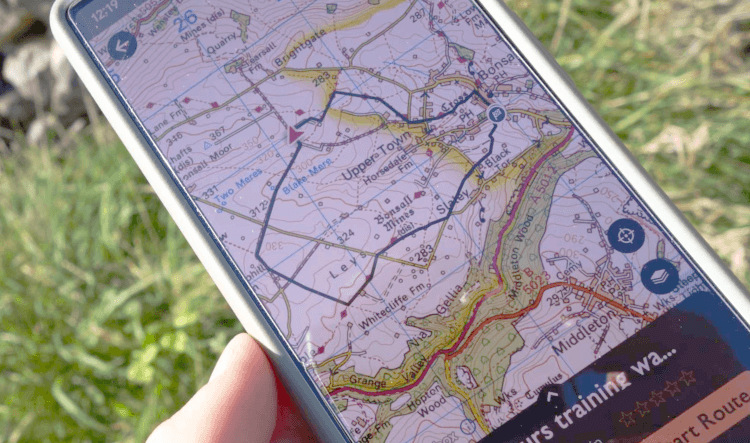
A close-up of a phone, as held out on a walking trail. The screen displays the OS Map interface, loaded with a GPX file showing the route of one of Contours Holidays' circular training walks in the Peak District. The route is clearly displayed over Ordnance Survey mapping.

With plenty of options to choose from, read on to find the right navigation app for you, or skip ahead for detailed instructions on how to download the GPX file for your holiday and upload it to your mobile device.
Top Navigation Apps for Your Long-Distance Holiday

A doodle in the Contours style of a mobile phone, seen head on with a map shown on the screen.

You can trust every navigation app on this list to do a great job of that one critical function: displaying a GPX route so you can follow it across the UK countryside.

Which app appeals to you the most will come down to personal preference, so to help you draw up a shortlist, we've laid out their main strengths, weaknesses, and the extra features they provide.

In-Depth Mapping: OS Maps

Download OS Maps: for Android, for iPhone.

Ordnance Survey provide some of the best mapping for outdoorsy wanderers in the UK, so it should be no surprise that their handy OS Maps app is the most popular amongst staff at Contours Holidays.

Naturally, the OS app utilises the company’s excellent map data, accurately displaying contours, rights of way, landmarks and useful sites such as museums, pubs, phone boxes and public toilets.

With the GPX route overlaid on those excellent maps, the navigation experience is good. The app reports distance covered and distance to go and shows elevation information, too, so you can better anticipate the pace of your walk.
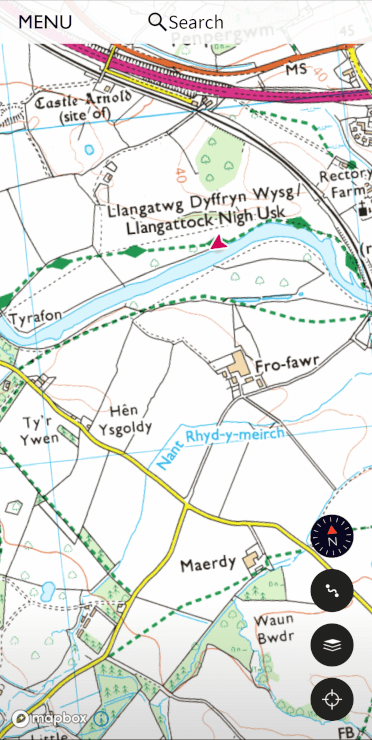
A screenshot of the OS Maps app for GPS navigation, showing Ordnance Survey-style mapping with the user's location shown with a red arrow marker.
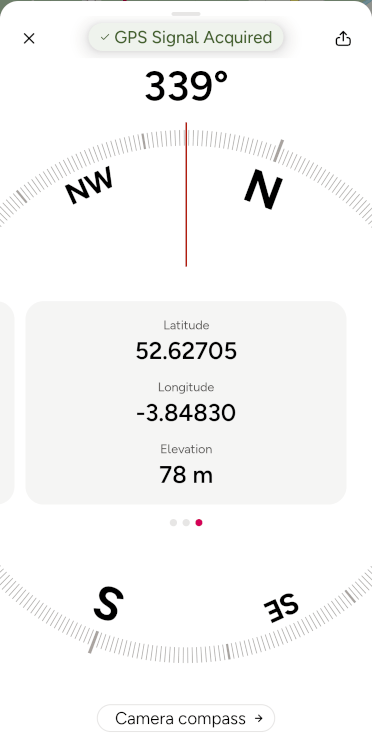
A screenshot of OS Maps' Locate Me feature, showing compass bearing, latitude, longitude and altitude.

Should you need help on the trail, OS Maps includes OS Locate Me. From the map screen, tap the three dots in the upper-right-hand corner and tap Locate Me. This feature produces your co-ordinates so we (or Mountain Rescue) can better find you on the trail.

When your Contours holiday is over, you can use OS Maps to design your own routes or browse and follow trails shared by other users, although we don’t think its sharing aspect is quite as expansive as the one offered by competitor app Komoot.

Premium Subscription

A premium subscription to OS Maps is required to upload GPX files, utilise full Ordnance Survey mapping across the country and download maps for offline use.

Note: if you own relatively modern paper Ordnance Survey maps for the area where you’re walking, you should be able to download those maps to the app for offline use at no additional cost by using scratch-revealed codes from their covers — but you still won’t be able to upload GPX files, so even with the map tiles filled in, the free version of this app remains limiting.

Alternative Option for In-Depth Mapping

As OS Maps’ greatest strengths, in our opinion, are its detailed mapping and excellent Locate Me function, OutdoorActive is its nearest competitor.

While OutdoorActive is not as professionally put together as the OS Maps app, it offers a range of great maps to choose from, including Ordnance Survey Maps, Harvey Maps, OpenStreetMaps and their own fairly detailed offering. If you’re travelling outside the UK, there are international options to choose from, too.
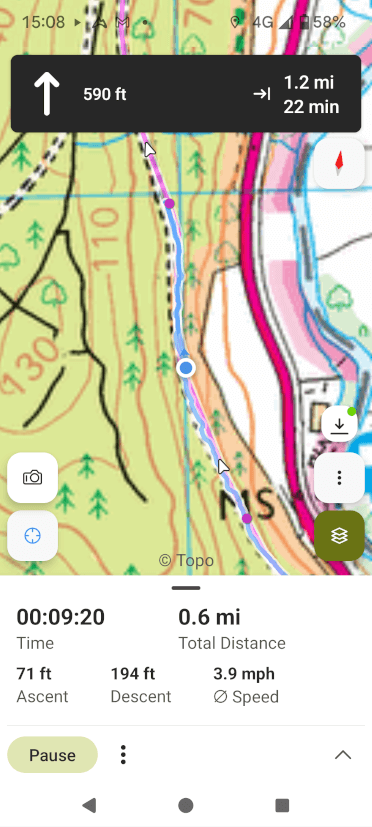
A screenshot of the OutdoorActive navigation app for GPX routes. The user is depicted as a blue dot on a pre-loaded GPX route, overlaid on Ordnance Survey mapping. The app shows how long they've been walking, the distance, ascent and descent they've covered, and a notification of an upcoming turn they need to take.
A screenshot of OutdoorActive's location feature, showing a compass bearing and a series of locations, including latitude and longitude and what3words designation.

The app’s take on Locate Me is also excellent, giving a compass bearing and offering your location in multiple formats, including the increasingly widely used what3words.

Download OutdoorActive for Android or iPhone.

Social Option: Komoot

Download Komoot: for Android, for iPhone.

Komoot is a great social app that provides its own mapping alongside OpenStreetMap options. It’s a solid way to follow a GPS route on your phone and provides useful information such as elevation, surface type and path type. With a premium subscription, Komoot even shows the weather along the trail.
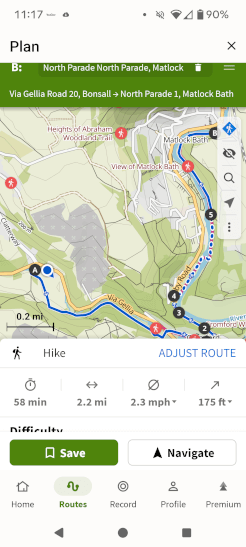
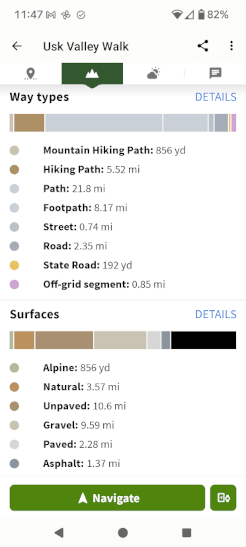
A screenshot of Komoot's planning page, showing an uploaded GPX file displayed on the map with editing options around.
Komoot displays the types of path that make up the Usk Valley Walk, breaking it down by surface type (gravel, dirt, paved etc) and permission type (footpath, bridleway, road etc).
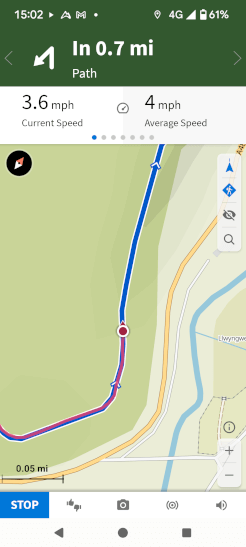
A screenshot of Komoot's navigation app interface taking the user along a pre-uploaded GPX track. It displays current speed and average speed and highlights an upcoming turn the user needs to make.

Komoot has great longevity even when your walking holiday is over. It becomes a particularly powerful tool when you’d like to find new day-walk trails to try: users are invited to share and collate their favourite trails, and you can browse and download them to explore at your leisure. These trails are generally better illustrated by Komoot than competitor apps. Additionally, you can plot your own trails through their website.

Premium Subscription

Although you can upload your routes to the Komoot app with a free account, you’ll need to upgrade to premium to navigate via the app and save your routes for offline use (which is an essential feature in the British wilderness, where mobile signal isn’t guaranteed).

Alternative Option for Great Social Features

The other navigation app with a signficant social sharing side is AllTrails. Like Komoot, the app allows you to share trails with others. It also offers live sharing, so friends and family members can track your progress in real time.
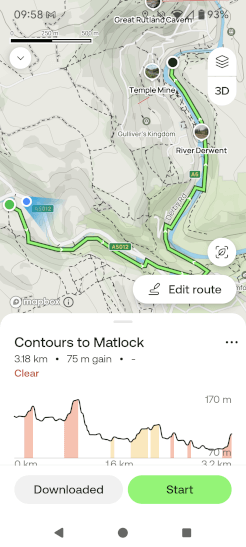
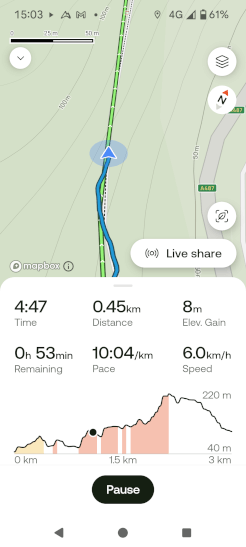
The AllTrails navigation app shows a GPX file overlaid on its mapping, with distance and route profile clearly displayed.
A user navigates along a GPX track with AllTrails. This screenshot shows the route clearly overlaid on the map with the user displayed in realtime, with a bottom panel giving time, distance, elevation gain, time remaining, pace and speed. The app also shows the user on the route profile, so they can compare what they've walked already with the elevation and descent to come.
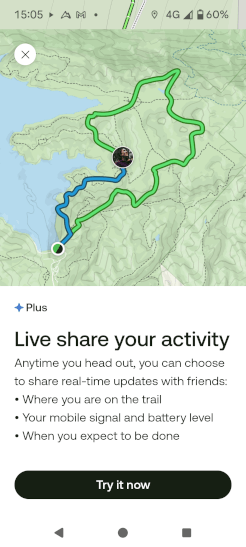
A screenshot of the AllTrails Liveshare feature, allowing the user to share their current walk progress with family and friends.

AllTrails is decent for general navigation, with nice clear route profiles showing ascent, but the app is somewhat let down by its limited range of mapping options: there’s no Ordnance Survey or Harvey mapping here.

An interesting perk of a paid AllTrails subscription, however, is the option to print off your route so you have a hard copy with you. While on your Contours Holiday you’ll have a full map with you already, we think this could be a great feature for future day walks.

Download AllTrails on Android and iPhone.

Free to Use and Practical: OsmAnd

Download: For Android, for iPhone.

Looking to skip any online account-related faff? OsmAnd is a great app that provides navigation without necessitating a login or posting your files online.

OsmAnd allows you to download several large map areas for free and utilises OpenStreetMap data, which is not as detailed as Ordnance Survey mapping but shows points of interest and differentiates between footpaths, bridleways, green lanes and roads. It’s sufficient to follow a GPS route from Contours.
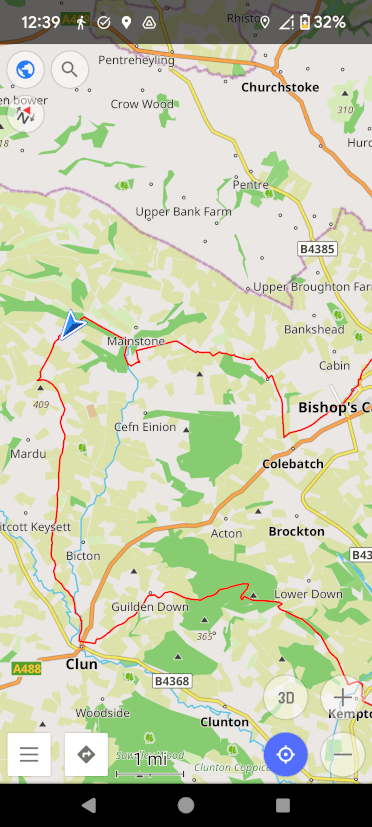
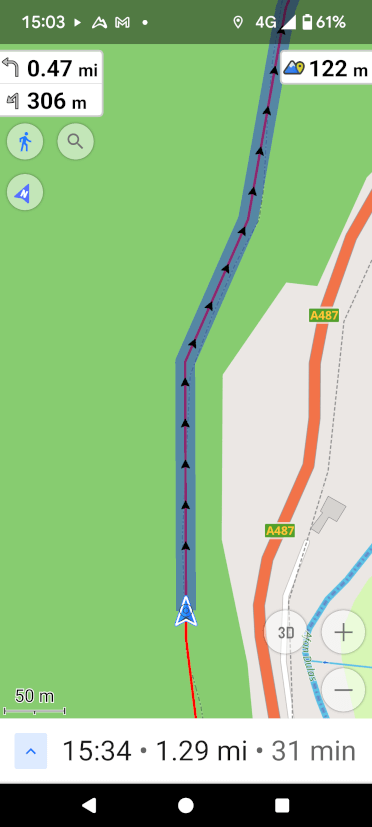
A screenshot of the OsmAnd navigation app with a Contours route GPX displayed as a red line on the map.
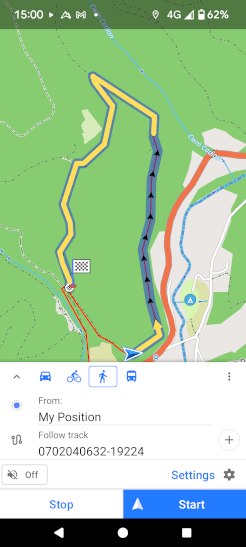
A shot of OsmAnd's active navigation view, with the user and trail displayed alongside time, distance and elevation.

The navigation experience on OsmAnd is not quite as glossy as apps such as OS Maps, but it’s functional and highly customisable. Your GPS track is highlighted clearly on the map ahead, along with the distance to the next turn, impending ascent and distance yet to walk.

OsmAnd does not record each trip like other apps do; this app is focused entirely on navigation.

An App That Works for Free

OsmAnd’s maps are downloaded by area. Android users can download up to seven maps for free, while Apple users get five. An area is usually as large as all of Wales, so for the domestic traveller, it’s not much of a limitation.

For additional maps, topography information and the ability to save your routes to an online account that spans multiple devices, you’ll need to upgrade to the paid version, but the free form of OsmAnd is an excellent way to navigate along a trail.

How to Download the GPX File for Your Walk from the Contours Holidays Website

Contours Holidays provide complete GPX files for all our holidays. Here’s how to download them to your personal device:
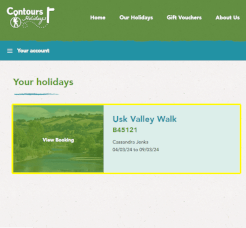

  1. Log in to our Members Area.
  2. You’ll see a list of all your bookings. Select the trail you want to download.
  3. On the blue strip towards the top of the page, tap or click GPS.
  4. Scroll down to the bottom of the map and tap or click Download [Trail Name] Full Route.
A screenshot of the Members Area on the Contours Holidays website, displaying a list of trails to choose from - in this case, just the Usk Valley Walk.
A screenshot of the Contours Holidays Members Area with the GPS button highlighted to make it easy to spot.
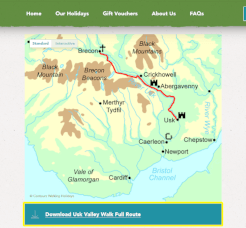
A screenshot of the Contours Holidays Members Area, showing the map of the route with the GPX download bottom displayed beneath and highlighted in yellow.

You can download the GPX file for your walk via the mobile device you intend to use for navigation or your computer, but in the latter case, you’ll need to transfer the file to your mobile device afterwards.

For dedicated GPS devices, installation instructions can be found further down the Members Area page.

If you plan to use a GPS app on your phone, the process varies. We’ve outlined the process for several common apps below.

Find Instructions for Your Preferred App

An Ordnance Survey map, the gold standard in mapping for walkers, overlaid with the logos of several great navigation apps you can use on your phone: OS Maps' red arrow, OsmAnd's gold waymarker, Komoot's green mountain and AllTrails' also-green-mountain.

View GPS Route on AllTrails


A paid account is required to navigate with AllTrails. You cannot upload a GPX file via the app; this must be done by logging in to AllTrails via your computer.
Import a GPX File to AllTrails

  1. Load the AllTrails website and log in to your paid account.
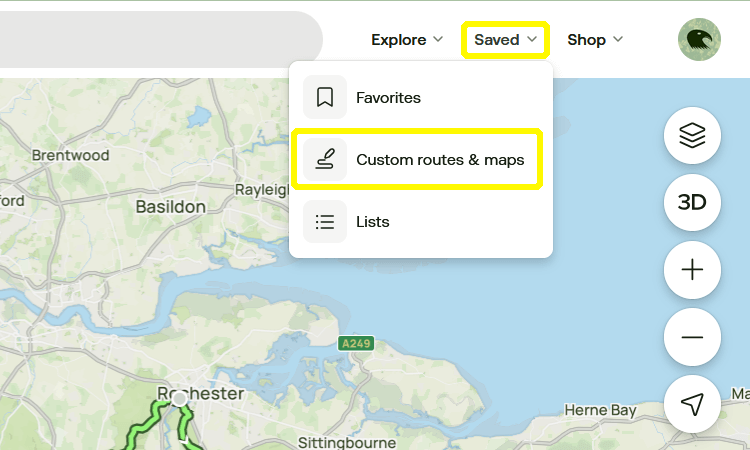
  2. Hover over Saved and select Custom routes & maps.

A screenshot of the AllTrails website showing where to click to access the GPX upload interface.

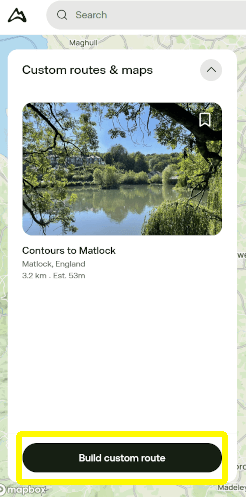
  1. Click Build custom route.
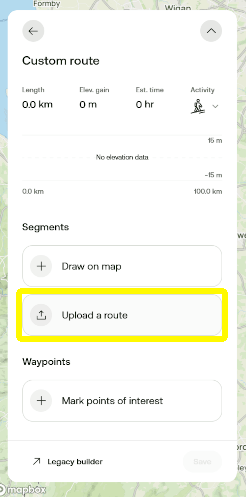
  2. Click Upload a route and select the GPX file you downloaded from the Contours Holidays website.
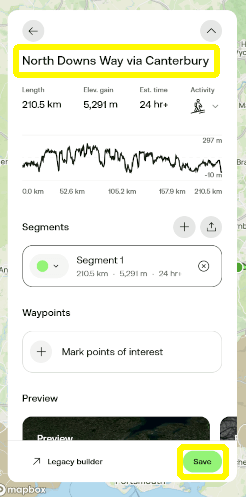
  3. You’ll see the route displayed on the map. To rename the route so you can find it more easily later on, click the placeholder name at the top of the editing panel.
  4. Click Save at the bottom right-hand-side of the panel.
  5. To navigate along this file on the trail, log in to the same AllTrails account via the AllTrails app on your mobile device.
A screenshot of the Custom routes & map panel with the Build Custom Route option highlighted.
A screenshot of AllTrails Custom route panel with the GPX upload button highlighted.
Another screenshot of AllTrails, with the route title and save option highlighted.

Get Your App Ready for Offline Use

  1. On the app, log in to your account.
  2. Tap Saved at the bottom of the screen.
  3. Tap Custom routes & maps.
  4. Tap the GPS route you intend to follow.
  5. Tap Download in the bottom left-hand corner.

Follow Your GPS Route on AllTrails

  1. On the app, log in to your account.
  2. Tap Navigate at the bottom of the screen.
  3. Tap Add route at the bottom of the screen.
  4. You should see your route listed under Downloads. If it does not appear, you have not downloaded the route; loop back to Get Your App Ready for Offline Use to get your route ready. If the route does appear, tap it.
  5. Tap Start at the bottom of the screen to navigate along the route.

View GPS Route on Komoot

Import a GPX File to Komoot Via the App

  1. On the app, tap Profile.
  2. Tap Saved routes.
  3. Tap IMPORT and then Import a file (GPX, FIT or TCX).
  4. Find and select your GPX file.
  5. Under Open in route planner, tap OPEN FILE.
  6. Choose your sport and tap Next.
  7. Komoot may request to Resolve Routing Issues. We recommend selecting Stick to original route rather than allowing Komoot to improvise changes.
  8. Tap Save, give the route a descriptive name, tick Save offline, and save the file by tapping SAVE.

Import a GPX File to Komoot Via Your Computer

  1. Visit the Komoot website and log in or create a new account. All routes added to this account will automatically update on any device where you’re logged into Komoot.
  2. Click your profile icon in the top right and select Saved routes.
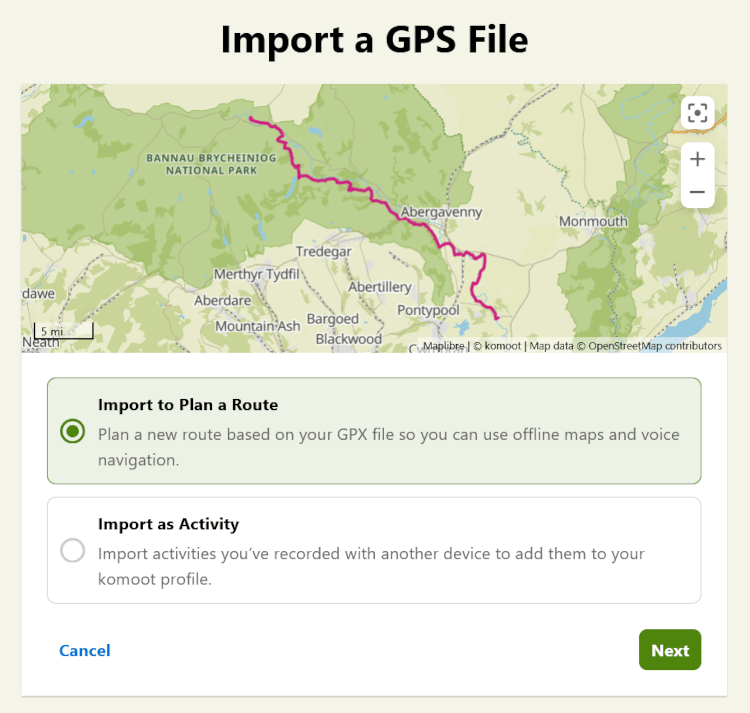
  3. Click Import a GPS File, select the GPX file you’ve downloaded from the Contours Holidays website, and when prompted, select Import to Plan a Route and click Next.

A screenshot of the Komoot GPX upload screen on desktop.

  1. Choose your sport and click Next.
  2. Komoot may request to Resolve Routing Issues. We recommend selecting Stick to original route to avoid improvised changes from Komoot.
  3. Save your trail, give it a name and log in to your account via the mobile app to access it on the go.

Get Komoot Ready for Offline Use

On the device you plan to use while navigating the trail, log in to your premium Komoot account via the app.

Download Maps
  1. Tap Premium in the bottom left-hand corner.
  2. Tap Offline maps.
  3. Komoot will recommend areas near you on the next screen. To find maps further afield, tap the magnifying glass in the bottom-right-hand corner and type a location into the search bar at the top. The app will list suggestions. Tap the closest match.
A screenshot of the Komoot navigation app for GPX files. The user is searching for the Cotswolds and Komoot has produced a list of potential matches.
Komoot displays the Cotswold map area for the user to decide if this matches their needs.
  1. The app will prompt you to Pick your package. Tap an option to see the package displayed on the map. If this covers the area you plan to walk, tap Save offline so the slider turns green and Komoot will download your mapping.
  2. Repeat these steps until you’ve downloaded maps for all the areas your trail goes through.
Check Your GPS Routes Are Available Offline
  1. Tap Profile at the bottom of the screen.
  2. Tap Saved routes.
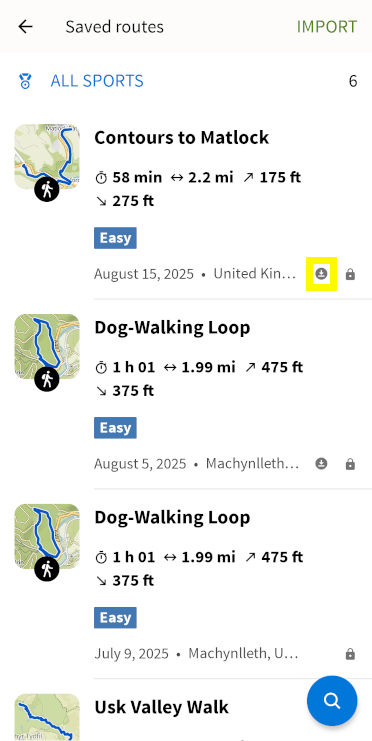
  3. In the list of saved routes, routes saved for offline use will show a downward-pointing arrow next to them.
  4. If this icon is missing from alongside your trail, tap that trail.
  5. Partway down the next page, tap Save offline so the slider turns green.
  6. Repeat this for any GPX files you want to save offline.
A list of the user's saved GPS routes within the Komoot app. The download icon, which indicates a trail has been downloaded for offline use, has been highlighted in yellow.
A screenshot of a trail saved in the Komoot app. There is a slide halfway down the screen that tells the app

View GPS Route on OsmAnd

Import a GPX File to OsmAnd

GPX files can only be uploaded to the free version of OsmAnd through the app directly.

If you subscribe to OsmAnd Pro, you can upload GPX files to your account through the browser version if you desire. OsmAnd’s browser interface mirrors the app exactly, so the steps are all the same once you’ve logged in online.
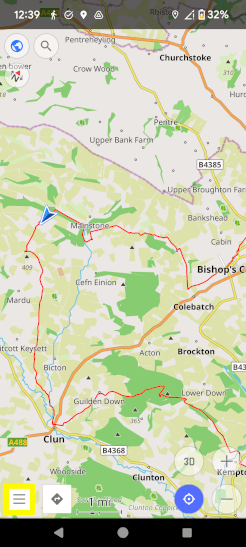
  1. Open the app and tap the three lines in the bottom-left-hand corner of your screen.
  2. Tap Plan a route.
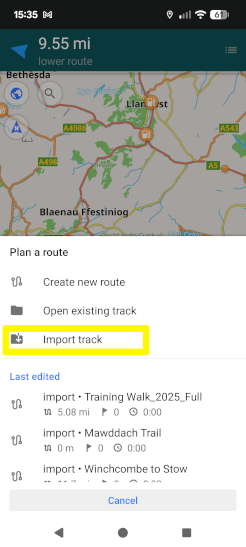
  3. Tap Import track. Locate the GPX file you’ve downloaded from the Contours Holidays website and select it.
A screenshot of the OsmAnd navigation app for GPX routes with the hamburger menu button highlighted in yellow.
A screenshot of the pull-across menu on OsmAnd with the Plan a Route option highlighted in yellow.
A screenshot of OsmAnd's Plan a route menu with the Import track option highlighted in yellow
  1. The route will show on the map. If it all looks correct, tap Save at the top-right corner of the screen.

Download Maps to OsmAnd for Offline Use

  1. Open the app on your mobile device.
  2. Tap the three lines at the bottom-left-hand corner of your screen.
  3. Tap Maps & Resources.
  4. You will see a list of regions. Tap Europe on the first screen, then United Kingdom.
  5. The countries of the UK are listed at the bottom under Regions. Tap the country your trail routes through.
  6. Under Regionwide maps, tap Standard map.
  7. Repeat this process for other countries as required.

Follow a GPS Route on the OsmAnd App

If you’re using the premium version of OsmAnd and uploaded your route via your computer, make sure to log in to your account on the mobile app.
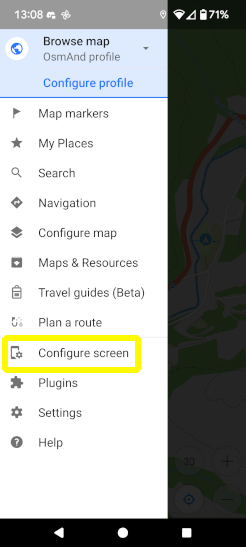
  1. Open the app and tap the three lines at the bottom left-hand corner of your screen.
  2. Tap Configure map.
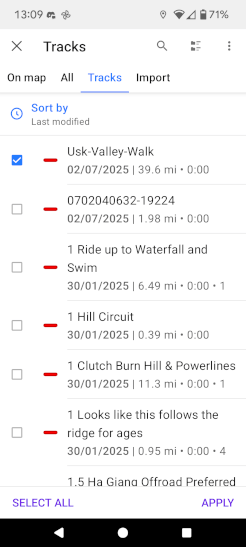
  3. From the list of options, find Tracks and tap the slider beside it on the right.
  4. Tap Tracks or All towards the top of the screen and tick the box alongside the name of your GPX file.
  5. In the bottom-right-hand corner of the screen, tap Apply.
  6. Your trail should now be marked out on the map. To navigate along it, tap the trail directly and then tap the diamond with an arrow in it towards the bottom-right corner of the screen.
  7. If it isn’t already selected, tap the picture of a walker, then tap Start to begin navigation.
A screenshot of the pull-across menu on OsmAnd with the Configure Map option highlighted in yellow.
A screenshot of the list of GPX files available to show on the OsmAnd map, with checkboxes beside each and the Apply option in the bottom-right-hand corner.
A screenshot of OsmAnd about to navigate along a GPS route.

View GPS Route on OS Maps

You must have a premium subscription to OS Maps to upload GPX files.
Import a GPX File to OS Maps Via the App

  1. On the OS Maps app, log in to or create a paid OS Maps account.
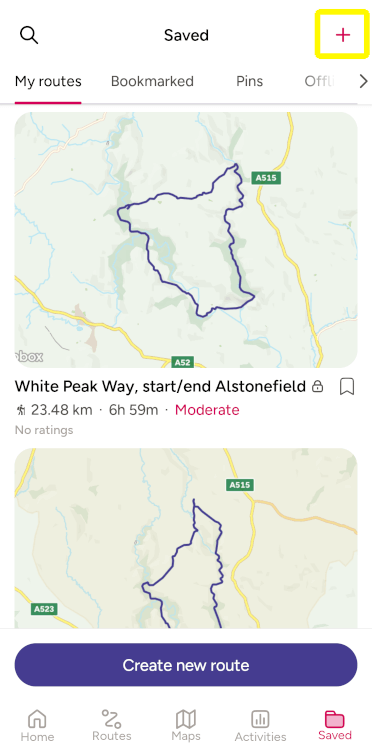
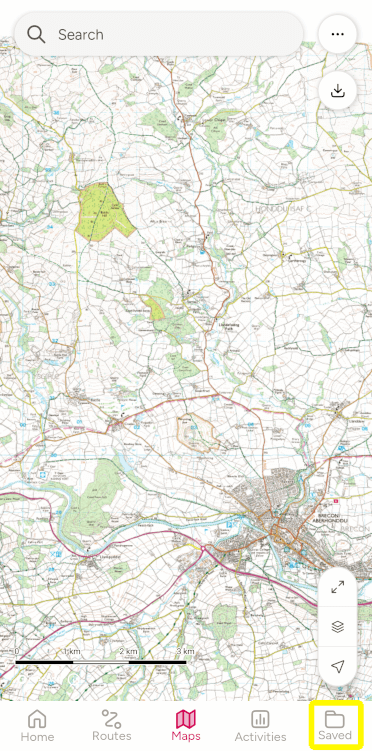
  2. Select the Saved tab at the bottom of your screen, then tap the + sign in the top right-hand corner.
A screenshot of the OS Maps app, showing the excellent Ordnance Survey mapping in the background, with the Saved menu highlighted in yellow at the bottom.
A screenshot of the saved screen on the OS Maps app, with the + sign highlighted in yellow.
  1. Locate the GPX file you’ve downloaded from the Contours Holidays website and select it for upload.
  2. Fill in as much or as little information as you like (we recommend a nice descriptive title!) and save the route.

Import a GPX File to OS Maps Via Your Computer

  1. Go to the OS Maps website and log in to or create a paid OS Maps account.
  2. On the top-left-hand-side of the screen, click the three horizontal lines.
  3. Click Routes and then Import GPX.
  4. Locate the GPX file you’ve downloaded from the Contours Holidays website and select it for upload.
  5. Fill in as many fields as you prefer, giving your route a descriptive name, and save it. Your route will save to your account and show up on the app on logged-in mobile devices.

Get Your App Ready for Offline Use

  1. Open the OS Maps app, sign in, and tap Saved in the bottom-right-hand corner.
  2. Tap the route you plan to walk.
  3. Look to the bottom of the screen and tap Download.
  4. To check that the download has been successful, return to the list of routes by tapping Saved and look for the route. It should now say Downloaded in the top-right corner.
A screenshot of the OS Maps app, showing the excellent Ordnance Survey mapping in the background, with the Saved menu highlighted in yellow at the bottom.
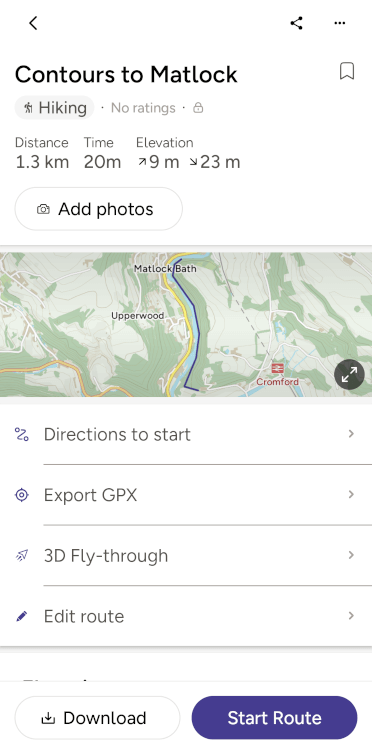
A GPS route selected on the OS Maps app. Tap Download to save the file for offline use or Start Route to begin navigating along it in real time.

Follow a GPS Route on the OS Maps App

Now that you’ve added the route to your account, following it is straightforward.

  1. Open the app, make sure you’re signed in, and tap Saved in the bottom-right-hand corner.
  2. From the list of routes, tap your trail.
  3. Tap Start Route to begin navigation.

Note that if you have mobile data switched on while out on the trail, OS Maps will use it to stream map tiles rather than utilising your pre-downloaded content. In areas with patchy signal, this can lead to a blank screen. To avoid this, toggle off mobile data on your phone while using OS Maps.

View GPS Route on OutdoorActive

You must have a paid subscription to OutdoorActive to view GPX files offline.
Import GPX File to OutdoorActive Via the App

  1. On the OutdoorActive app, log in to or create an OutdoorActive account.
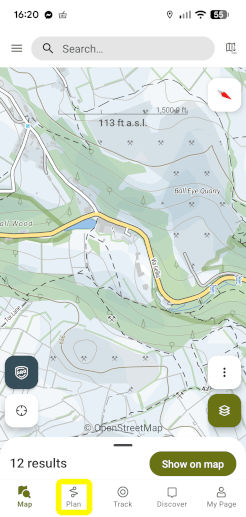
  2. Tap Plan at the bottom of the screen.
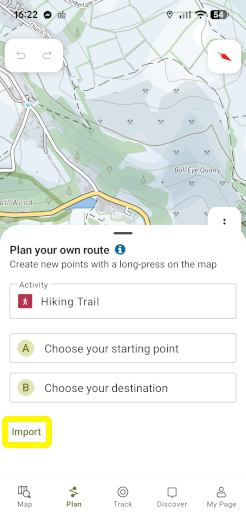
  3. A panel will appear titled Plan your own route. Pull this panel further up the screen until you can see the word Import. Tap Import.
  4. Locate the GPX file you’ve downloaded from the Contours Holidays website and select it for upload.
  5. The route will display on the map. If it looks correct, tap Save.
  6. Fill in as many fields as you prefer, giving your route a descriptive name, and tap Save.
A screenshot of the OutdoorActive navigation app with Plan highlighted at the bottom.
The Plan your route panel on the OutdoorActive app, with Import highlighted to help upload a GPX file.
A screenshot of the GPX route for the Usk Valley Way uploaded to the OutdoorActive app, showing the trail in full overlaid on the mapping, with distance and elevation shown beneath.

Import a GPX File to OutdoorActive Via Your Computer

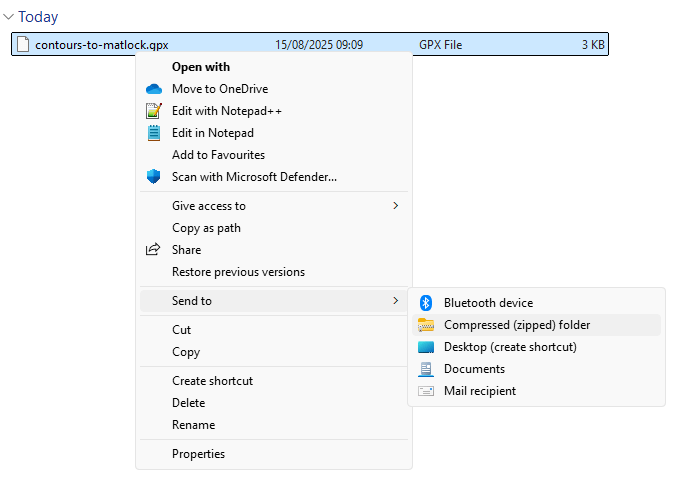
  1. First, in File Explorer, find the GPX file you downloaded from Contours Holidays and right-click it.
  2. Look down the list of options and select Send To, then choose Compressed (zipped) folder.
    A screenshot of the flyout menus you must navigate to send your GPX files to a compressed .zip file.
  3. Go to the OutdoorActive website and log in to an OutdoorActive account.
  4. Click your profile picture in the top-right corner of the screen.
  5. From the list on the left, click Routes.
  6. Click Import and then Select File.
  7. Select the zipped folder you created for your GPX file in steps 1-2.
  8. Click Import as tours.
  9. From the What kind of activity are your tours? dropdown, choose the option that best matches the activity and click Next at the bottom-right of the panel.
  10. OutdoorActive will prompt you to align the route with the route network. We suggest choosing Do not align waypoints with the route network and then clicking Next.
  11. Choose whether or not to publish your trail so others can see it and click Start import.
  12. Click See routes to check your file has uploaded correctly.

Get Your App Ready for Offline Use

  1. Sign in to your paid account on the OutdoorActive app on your mobile device.
  2. Tap My Page.
  3. Tap Routes.
  4. Tap the Route you want to download.
  5. Tap Download at the bottom of the screen.

Follow a GPS Route on the OutdoorActive App

  1. Sign in to your OutdoorActive account on the OutdoorActive app on your mobile device.
  2. Tap My Page.
  3. Tap Routes.
  4. Tap the route you want to follow.
  5. Tap Navigate at the bottom of the screen.
  6. With a paid account, you can navigate along more precise maps. To change map type, tap the icon showing three stacked diamonds low down the screen on the right-hand side.
  7. Tap Topo to activate Ordnance Survey mapping or HARVEY Maps for Harvey mapping. Tap anywhere on the map to resume navigation.

Not Listed?

If your preferred app isn’t included on this list, your best bet may be to search the app’s website for detailed instructions on how to upload a GPX file. If that doesn’t work, get in touch and we’ll see about writing up instructions for it.

Similarly, while older apps like OsmAnd don’t tend to change, newer apps like AllTrails frequently revise their interface and may render our guide out of date. We’ll try to stay on top of that, but the official app website is always a great resource if the process has changed.

Walk the Trails with Contours’ GPX Files

We hope this post has been informative and helps you get the most out of our digital resources. Just remember that nothing beats a good old map and compass for true reliability out in the countryside. Bring all three and have a great time out there on the trails!


A walker sits in a tree as they read a paper map, the OG navigation app.

Cass J, writer at Contours Holidays, rides a mountain bike down a hill.

Cass Jenks

Marketing and Strategy Consultant

Writer, editor and Google-wrangler at Contours Holidays, Cass spends each weekend on the trails, walking the dog or plummeting downhill along Wales’ best mountain biking tracks.

Read more blogs by Cass Jenks


Originally published 20/12/25


Top posts